How to Connect Your eBay Store to Althemax
By Althemax ·
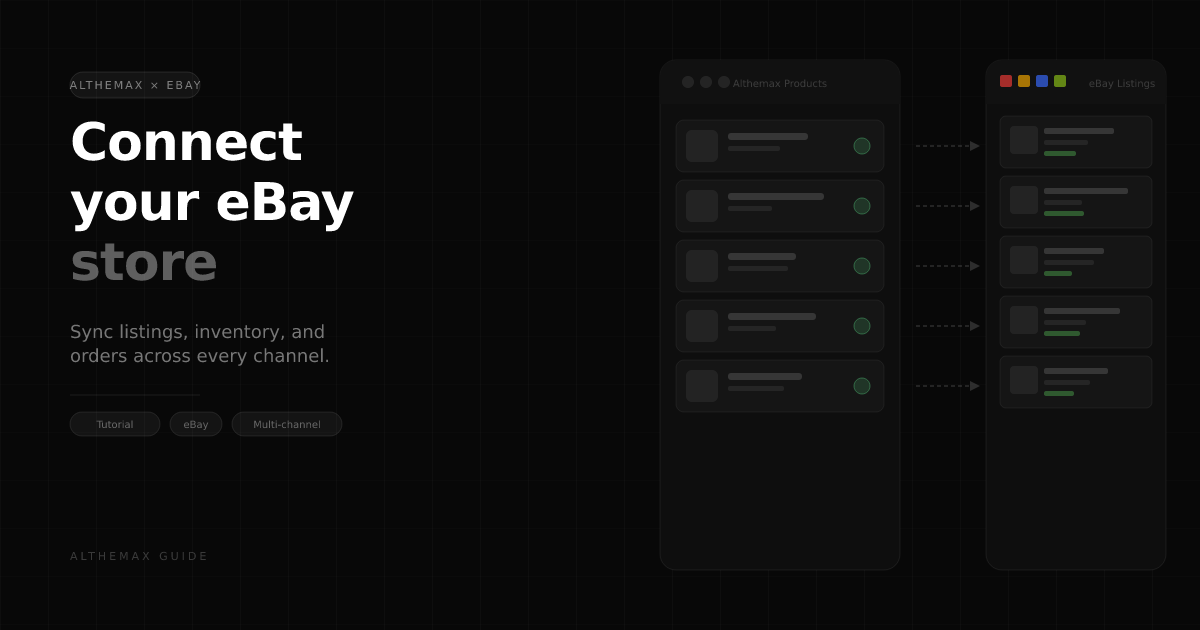
Althemax's eBay connector lets you list your entire product catalogue on eBay and manage everything — listings, inventory, pricing, and orders — from your Althemax merchant dashboard. AI shopping agents that query the Althemax API can surface your products to buyers; those buyers click through to your live eBay listing to complete purchase at your standard eBay rates.
This guide walks you through connecting eBay, importing your listings, setting pricing rules, handling orders, and optionally enabling Promoted Listings — all without leaving the Althemax dashboard.
What the eBay connector does
- One-click OAuth connection. Authenticate once; Althemax receives the permissions needed to read and publish on your behalf. No API keys to manage.
- Catalogue sync. Your Althemax product catalogue publishes to eBay as fixed-price listings. Inventory levels stay in sync automatically.
- Order management. eBay orders appear in your Althemax orders dashboard alongside orders from other channels — one view for everything.
- Per-channel pricing. Override the marketplace price on a per-listing basis to account for eBay fees or channel-specific margins.
- Promoted Listings. Opt products into eBay's ad programme directly from the product edit page.
- AI agent discoverability. Every synced eBay product is indexed in the Althemax agent API, so AI assistants can find and recommend it alongside your other inventory.
Prerequisites
- An active Althemax merchant account (Starter tier or above)
- An eBay seller account in good standing with at least one active listing or verified seller status
- Products already added to your Althemax catalogue (the connector pushes your Althemax products to eBay, not the other way around)
Step 1 — Connect your eBay account
From your Althemax merchant dashboard, navigate to Channels → eBay.
- Click Connect eBay account.
- You'll be redirected to eBay's authorisation screen. Important: eBay will ask which eBay account to use — make sure you're connecting the correct seller account. If you're already signed into a personal eBay account in your browser, eBay will re-prompt you to confirm the right one.
- Grant Althemax the requested permissions. These cover reading your active listings, publishing new listings, and receiving order notifications.
- Once authorised, you'll return to the Althemax dashboard and see a summary of your eBay seller account status (feedback score, listing limits, active count).
If you ever need to swap eBay accounts, click Disconnect on the eBay channel page and repeat this step with the correct account. One eBay account can only be connected to one Althemax merchant at a time.
Step 2 — Import your existing eBay listings
After connecting, Althemax can import your current live eBay listings so they're tracked alongside your Althemax catalogue.
- On the eBay channel page, click Import listings.
- Althemax fetches your active listings from the eBay Sell API and tries to match each one to an existing Althemax product by barcode (EAN/UPC) or title similarity.
- Matched listings show a green tick and the Althemax product they've been linked to. Unmatched listings show as standalone — you can link them manually by clicking Link to product and searching your catalogue.
- Once linked, the listing is tracked: inventory changes in Althemax push to the live eBay listing within a few minutes.
Listings in Non-active status (ended, cancelled, out-of-stock holds) are shown on a separate tab and are read-only — Althemax won't attempt to revise or relist them automatically.
Step 3 — Publish Althemax products to eBay
To list a product that isn't yet on eBay, open the product from Products → [Product name] and find the Channels card.
- Click Add channel → eBay.
- Althemax pre-fills the listing form with your product title, description, images, and price. Review the suggested eBay category match — Althemax uses your product type and tags to pick the most relevant category, but you can override it.
- Set a listing duration (Good Till Cancelled is the default for fixed-price).
- Set a fulfilment policy — choose from the shipping profiles you've configured in eBay Seller Hub, or let Althemax use your default profile.
- Click Publish to eBay. The listing goes live within a few seconds and the product page shows a live eBay chip with the listing ID.
For products with multiple variants (e.g., a T-shirt in S/M/L/XL), Althemax publishes a single eBay variation listing with all sizes as selectable options under one listing ID — keeping your eBay defect rate clean and avoiding duplicate listings.
Step 4 — Set per-channel pricing and quantity
eBay charges a final value fee on every sale (typically 12–13%). To protect your margin, you can override the price specifically for eBay without changing your Althemax marketplace price.
- On the product's Channels card, find the eBay listing row and click the price / quantity override field.
- Enter your eBay-specific price. This is what buyers see on eBay. The Althemax marketplace continues to show the original price.
- Optionally set a quantity override — useful if you want to expose fewer units on eBay than your total stock (e.g., hold back 5 units for direct sales).
- Click Save. The next Save & sync on the product pushes the override price to the live eBay listing.
Step 5 — Monitor and manage orders
eBay order notifications arrive via platform webhooks automatically. Go to Channels → eBay → Orders to see all eBay orders in one place.
- Order status updates (paid, shipped, cancelled) sync both ways: mark an order shipped in Althemax and the tracking uploads to eBay automatically.
- Buyer messages sent through eBay's messaging system appear in the order detail panel so you can reply without opening Seller Hub.
- Refunds and returns initiated on eBay appear in the orders list with a
return_requestedstatus badge.
Althemax also syncs the customer's shipping address and contact details to your order record, making it easy to hand off to a fulfilment partner or print shipping labels from within the dashboard.
Step 6 — Enable Promoted Listings (optional)
eBay's Promoted Listings Standard programme boosts visibility in search results. You set an ad rate (percentage of the sale price) and only pay when the promoted listing drives a sale.
- On the product edit page, find the eBay Promoted Listings panel below the Channels card.
- Toggle Enable Promoted Listings on.
- Set your ad rate (e.g., 5%). eBay's suggested rate for your category is shown as a guide.
- Click Save & sync. Althemax submits the promotion via the eBay Sell Marketing API. Your listing will appear with a "Sponsored" badge in eBay search results within minutes.
You can check Promoted Listings eligibility status on the panel — some listing types or new accounts may not yet qualify. The panel surfaces the reason clearly so there's no guessing.
Tips for better eBay performance
- Use barcodes (EAN/UPC/GTIN). eBay's catalogue matching works best when your listings include a barcode. Add them via the product edit page — Althemax sends the
GTINfield to eBay automatically, which can improve your impression share in category search. - Optimise your title for eBay search. eBay's search algorithm is keyword-heavy. The Althemax product title flows directly into the eBay title — front-load the most important terms (brand, model number, key feature).
- Set competitive shipping profiles. Free shipping improves Best Match ranking on eBay. Review your fulfilment policies in eBay Seller Hub and pick the fastest-and-cheapest option your margins allow.
- Review your listing limits. New or recently reactivated eBay accounts have monthly selling limits. Althemax shows your current limit on the eBay channel overview page so you're not surprised mid-campaign.
- Keep images clean. eBay requires images without watermarks or superimposed text. Althemax passes your product images as-is; make sure your hero image meets eBay's image policy.
Troubleshooting
Listing fails with "Condition required for this category": Some eBay categories require an item condition (New, Used, Refurbished). Open the product, go to the eBay channel row, and set the condition before re-publishing.
Inventory not updating on eBay: Check the eBay channel overview for a webhook connectivity indicator. If it shows disconnected, go to Channels → eBay → Reconnect to refresh the OAuth token. eBay tokens remain valid as long as your seller account is in good standing.
"Listing is not eligible for Promoted Listings": eBay requires the listing to be in an eligible category and have at least one recent sale or impression. Try running the listing organically for a few days before enabling promotion.
Wrong eBay account connected: Click Disconnect on the eBay channel page, then reconnect. eBay will always re-ask which account to use so you can switch to the correct seller account.
Orders not appearing: eBay webhooks can occasionally be delayed by up to 15 minutes. If an order still doesn't appear after 30 minutes, use Channels → eBay → Orders → Sync now to pull the latest orders manually.
What's coming next for the eBay channel
- Bulk listing rules. Apply pricing overrides and promotion settings across your entire eBay catalogue in one action — useful when eBay changes its fee structure.
- eBay variation image support. Currently, variation listings (e.g., colour variants) share the product gallery. Upcoming: per-variant image assignment so each colour swatch shows the right photo.
- Agent-driven order placement. Allow AI shopping assistants to place eBay orders programmatically on behalf of buyers who've connected their eBay account to the AI assistant.
The eBay connector is available on all Althemax tiers. Log in to your merchant dashboard and navigate to Channels → eBay to get started.
Questions or into a listing issue that's not covered here? Email us at hello@althemax.com or open a chat from the dashboard.