How to Use the Althemax Printify Bulk Design Tool
By Althemax ·
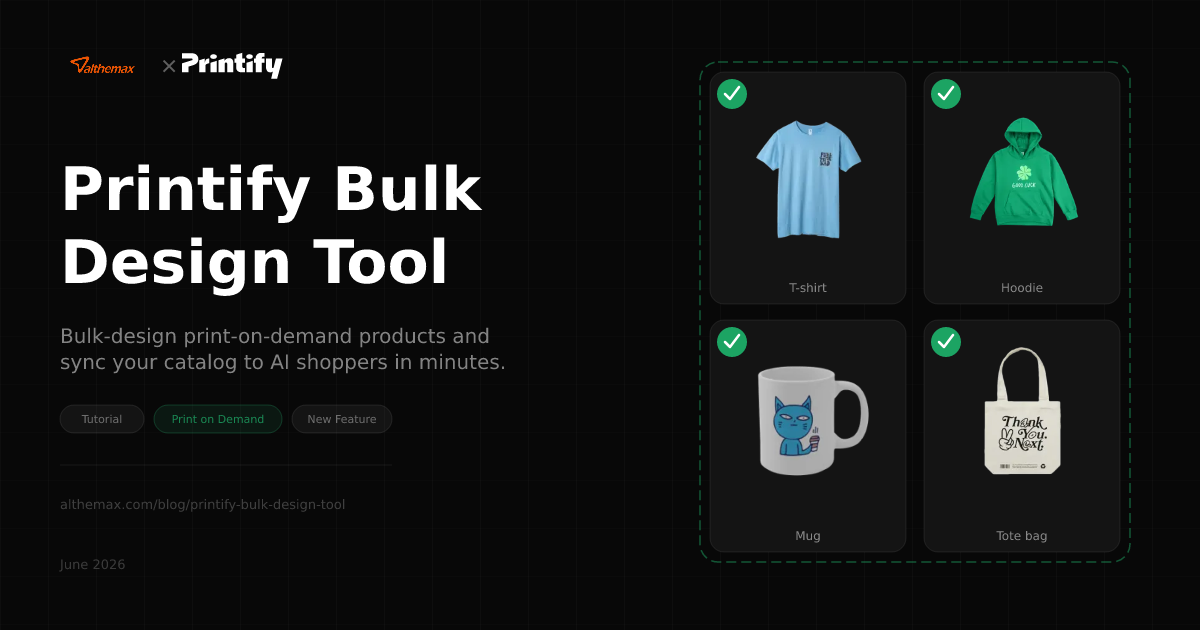
Print-on-demand is one of the fastest-growing segments in e-commerce — and with AI shopping agents now directing buyers to the products that best match their intent, your Printify catalog needs to be machine-readable as well as visually beautiful. The Althemax Printify Bulk Design Tool bridges that gap.
This guide walks you through connecting Printify to your Althemax merchant account, bulk-applying designs across your product range, and syncing everything to the marketplace so AI agents like ChatGPT, Claude, and Perplexity can discover and recommend your products.
What the Printify Bulk Design Tool does
Traditional Printify workflows require you to open each product individually, upload a design, position it, save, and repeat — hundreds of times if you have a large catalogue. The Althemax Bulk Design Tool changes that:
- Upload once, apply everywhere. Upload a design file and choose which product types to apply it to — T-shirts, hoodies, mugs, posters, phone cases — in a single operation.
- Placement presets. Save a positioning profile (e.g., "front-centre, full-width") and the tool applies it consistently across all selected products.
- Automatic sync to the marketplace. Once products are published on Printify, Althemax pulls them into your catalog and makes them immediately discoverable through the agent API.
- SEO + GEO metadata generation. Each synced product gets a structured product title, description, and tags formatted for both search engines and AI agents — no manual copywriting required.
Prerequisites
- An active Althemax merchant account (Growth tier or above)
- A Printify account with at least one print provider set up
- Your design files in PNG or SVG format (minimum 300 DPI for print quality)
Step 1 — Connect your Printify account
From your Althemax merchant dashboard, navigate to Channels → Printify.
- Click Connect Printify account.
- You'll be redirected to Printify's OAuth authorisation screen. Grant Althemax permission to read your catalog and publish products on your behalf.
- Once authorised, Althemax imports your existing Printify products automatically. This initial sync can take a few minutes for large catalogues.
You'll see a summary panel showing how many products were imported and their current publish status.
Step 2 — Upload your design
- In the Printify channel, click Bulk Design → New design upload.
- Upload your PNG or SVG file. The tool shows a live preview on a generic blank product.
- Set your placement preset: choose from Front Centre, Back Centre, All-Over Print, or define a custom anchor point and scale.
- Give the design a name — this becomes the base of your product titles (e.g., "Sunset Arch" → "Sunset Arch T-Shirt", "Sunset Arch Hoodie").
Step 3 — Select product types for bulk application
After uploading, you see your Printify print provider's available product catalogue. Tick every product type you want to apply the design to:
- Apparel: Classic Tee, Premium Hoodie, Sweatshirt, Tank Top, Long Sleeve
- Accessories: Tote Bag, Backpack, Cap, Beanie
- Home & Living: Mug (11oz / 15oz), Poster, Canvas Print, Cushion, Mouse Pad
- Stationery: Notebook, Hardcover Journal
Althemax shows a per-product cost and your margin at the price you set. You can override pricing per product type at this stage or accept the recommended markup.
Step 4 — Review and publish in bulk
- Click Preview all to see a grid of mockups — one per product type you selected. Adjust placement on any individual product if needed.
- Click Publish to Printify. Althemax sends all variants to Printify simultaneously. Printify processes the job and returns live product IDs, usually within 60 seconds.
- Althemax then automatically imports the published products into your marketplace listing, assigns merchant-namespaced URLs (
/products/your-store/product-handle), and generates structured data for AI agent discovery.
Step 5 — Verify AI agent discoverability
Once synced, you can confirm your products are visible to AI agents via the Althemax agent API:
curl "https://althemax.com/api/agent/search?q=sunset+arch+tee"You should see your newly published products in the response within a few minutes of syncing. The product listings include:
title— formatted product namedescription— auto-generated from the design name and product typevendor— your store nameavailable— live inventory status from Printifyurl— direct link to your Printify storefront for checkout
AI assistants that query the Althemax API will immediately be able to find, compare, and recommend these products to users searching for print-on-demand items.
Tips for better AI discoverability of POD products
- Use descriptive design names. "Blue geometric mountain landscape" beats "Design_007". The name flows into product titles and AI search results.
- Tag your collections. Add tags like the style, occasion, or aesthetic ("minimalist", "gift", "retro") — the Althemax GEO layer surfaces these to agents answering gift or occasion queries.
- Publish variants strategically. A single design across 8 product types creates 8 indexed marketplace pages, multiplying your surface area for agent discovery.
- Set accurate print areas. Printify's print quality indicators are included in the structured data; products flagged as high-quality rank higher in agent recommendations.
Troubleshooting
Products not appearing in the marketplace after publish: Wait 5 minutes for the Printify webhook to fire and Althemax to import the new product IDs. You can also trigger a manual sync from Channels → Printify → Sync now.
Design placement looks off on certain products: Some products (e.g., all-over-print items) ignore global placement presets. Open those individually and set a custom placement via the Printify canvas editor, then re-sync.
Printify OAuth expired: Printify access tokens expire after 90 days. If syncing stops, reconnect via Channels → Printify → Reconnect account.
What's coming next
We're actively building:
- AI design suggestions. Describe a theme and let the Althemax AI generate a design concept for you to review before sending to Printify.
- Seasonal bulk updates. Schedule design swaps across your whole catalogue in advance (e.g., swap to a Christmas theme on 1 December automatically).
- Agent-driven POD orders. Let AI shopping assistants place print-on-demand orders programmatically on behalf of buyers.
The Printify Bulk Design Tool is available to all Growth, Scale, and Enterprise merchants starting today. Log in to your merchant dashboard and navigate to Channels → Printify to get started.
Questions? Email us at hello@althemax.com or open a chat from the dashboard.