How to Connect Your Shopify Store to Althemax
By Althemax ·
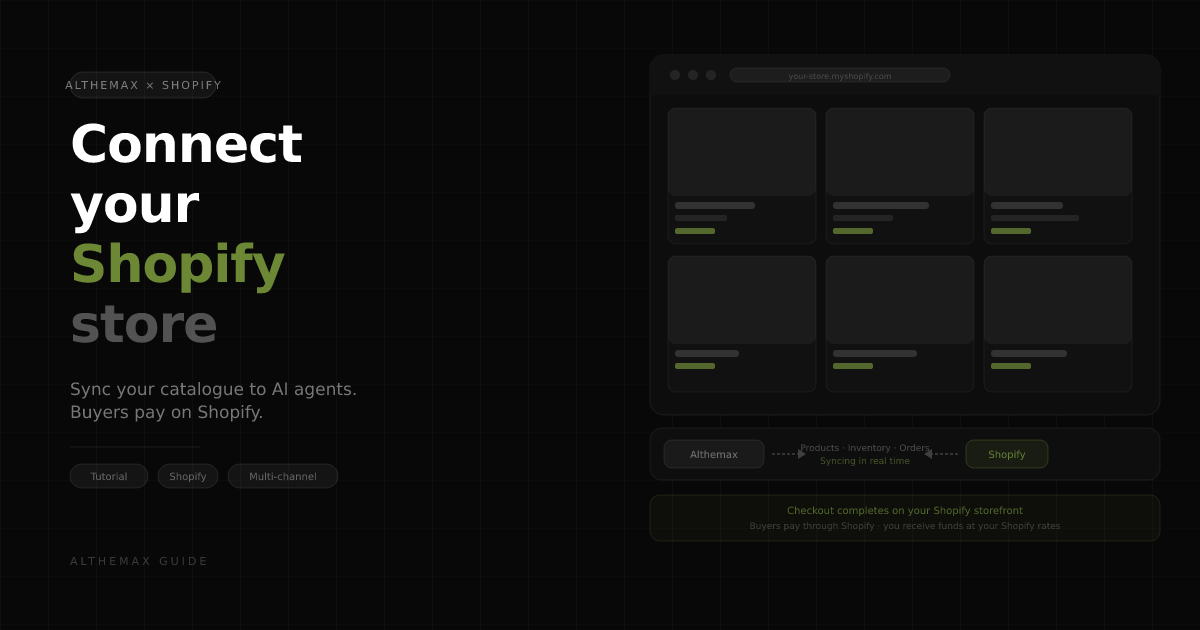
Althemax's Shopify connector bridges your existing Shopify store and the Althemax AI-agent marketplace in real time. Once connected, AI shopping agents — ChatGPT, Claude, Perplexity, and others — can find, compare, and recommend your products. When a buyer is ready to purchase, they're routed to your Shopify storefront to complete checkout there. You receive funds at your standard Shopify Payments rates; Althemax takes no transaction cut.
This guide covers installing the connector, syncing your catalogue, managing orders, and enabling the optional AlthemaxAI Subscription add-on — all without touching Shopify's admin beyond the initial install.
What the Shopify connector does
- Real-time catalogue sync. Products, variants, prices, and inventory quantities stay in sync automatically. A stock change on Shopify appears on the Althemax marketplace within seconds.
- AI agent discoverability. Every synced product gets structured metadata (title, description, images, price, availability, GTIN) indexed in the Althemax agent API so AI assistants can surface it in shopping conversations.
- Order visibility. Shopify orders placed via an Althemax referral appear in your Althemax orders dashboard, letting you see cross-channel sales in one place without leaving the Althemax UI.
- Checkout on your Shopify storefront. Buyers always complete purchase on your Shopify store — using your domain, your checkout branding, and your preferred payment methods. Althemax never handles the transaction.
- Subscription billing (optional). The AlthemaxAI Subscription add-on lets Shopify merchants offer recurring orders via the same Shopify checkout, with AI-agent-friendly APIs to renew, pause, or cancel on behalf of subscribers.
Prerequisites
- An active Althemax merchant account (Starter tier or above)
- A Shopify store on any plan (Basic and above) with at least one published product
- Shopify admin access to approve app installations
Step 1 — Install the Althemax Marketplace app on Shopify
From your Althemax merchant dashboard, navigate to Channels → Shopify.
- Click Connect Shopify store.
- Enter your Shopify store domain (e.g.,
your-store.myshopify.comor your custom domain). - You'll be redirected to the Shopify app installation screen. Review the requested permissions — Althemax needs read/write access to products, inventory, and orders to keep the two platforms in sync.
- Click Install app. Shopify redirects you back to the Althemax dashboard.
- Althemax immediately begins importing your Shopify catalogue. For stores with hundreds of products this initial sync may take a minute or two; you'll see a progress indicator on the channel page.
Once installed, the Althemax Marketplace app appears in your Shopify admin under Apps. You can manage permissions or uninstall from there at any time.
Step 2 — Review your synced catalogue
After the initial import, go to Products in your Althemax dashboard to see every synced product.
- Active products are immediately visible to AI agents via the Althemax API. Check that titles, descriptions, and images look correct — these are what AI assistants quote when recommending your products.
- Draft products are imported but not yet exposed to the agent API. Publish them from the product edit page when ready.
- Variants (size, colour, material) are preserved exactly as configured in Shopify. Each variant's price, SKU, and inventory level syncs independently.
You can edit product copy, add GEO-optimised descriptions, or attach additional tags from within Althemax — changes made here don't write back to Shopify, so your Shopify store is unaffected.
Step 3 — How checkout works (buyers pay on Shopify)
This is the most important thing to understand about the Althemax × Shopify integration:
Althemax is a discovery and referral layer. Checkout always completes on your Shopify storefront.
When an AI agent or marketplace visitor clicks "Buy" on an Althemax product page:
- They're routed to the matching product page on your Shopify store.
- They add to cart and check out using your Shopify checkout — your branding, your payment methods (Shopify Payments, PayPal, etc.), your discount codes.
- The sale is recorded as a normal Shopify order. You receive the full payment at your Shopify Payments rate. Althemax does not take a percentage of the transaction.
- Althemax recognises the referral via UTM parameters and records the order in your Althemax orders dashboard for cross-channel reporting.
Your existing Shopify fulfilment, shipping rules, and post-purchase flows (confirmation emails, review requests, loyalty points) all fire exactly as they would for any other Shopify sale.
Step 4 — Keep inventory in sync
Inventory sync is automatic and bidirectional:
- Shopify → Althemax: When you fulfil an order or adjust stock in Shopify, the updated quantity is pushed to Althemax and immediately reflected in the agent API's
availablefield. AI agents won't recommend an out-of-stock product. - Althemax → Shopify: If you set a quantity override on a specific channel (e.g., to hold back units for direct sales), Althemax stores it separately and doesn't write a reduced quantity back to Shopify.
For products set to "Don't track inventory" in Shopify, Althemax marks them as always-available — AI agents can recommend them without an inventory caveat.
Step 5 — Manage orders across channels
Navigate to Channels → Shopify → Orders to see all Shopify orders that arrived through an Althemax referral.
- Order status (paid, fulfilled, refunded) mirrors Shopify in near real time.
- Customer shipping address, line items, and total are visible alongside orders from your other Althemax channels (eBay, Amazon, etc.) for a unified view.
- If an order arrives without customer details — which can happen if your Shopify store hasn't re-granted the
read_customersscope after a connector update — a re-approve link appears in the channel page banner. Clicking it takes you through a one-step OAuth re-consent that restores full customer data on future orders.
Step 6 — Enable AlthemaxAI Subscription (optional)
If you sell consumables, software, or any product that benefits from recurring delivery, the AlthemaxAI Subscription add-on lets you offer subscribe-and-save directly through your Shopify checkout.
- From your Althemax dashboard go to AlthemaxAI Suite → Subscription and click Enable.
- Install the companion Shopify app when prompted — this wires the subscription billing widget into your Shopify product pages.
- Set your subscription intervals (weekly, monthly, quarterly) and discount percentages per product in the Subscription settings.
- Subscribers can manage (pause, swap frequency, cancel) directly via the widget on your Shopify storefront — and AI shopping assistants can do the same programmatically via the Althemax subscription API on their behalf.
Subscription payments process through Shopify Billing at your standard Shopify rates — same as one-time purchases.
Tips for better AI discoverability from Shopify
- Write product descriptions for AI, not just humans. AI agents extract intent signals from your product description. Include the use case ("perfect for home offices"), materials, dimensions, and compatibility notes — the kinds of details a buyer would ask a sales assistant.
- Add GTINs (barcodes) to your Shopify variants. The Althemax connector passes GTINs to the agent API. Products with valid GTINs are cross-referenced against public product databases, which boosts confidence scoring in AI recommendation models.
- Use Shopify's "Collections" as Althemax tags. Althemax imports collection membership as tags on the synced product. Tags like
gift-ideas,eco-friendly, orbestsellerhelp AI agents match your products to shopper intent signals like "sustainable gifts under £30". - Keep your Shopify SEO fields updated. The Althemax connector reads Shopify's SEO title and meta description fields and uses them as the canonical title and description in the agent API — so the work you've already done in Shopify carries over automatically.
- Publish variant images in Shopify. Althemax imports all variant images. AI agents that support image-based recommendations can show the right colour or size swatch alongside the product suggestion.
Troubleshooting
Products not appearing on Althemax after sync: Check the product's status on the Althemax product page — it may be set to Draft. Publishing it makes it visible to AI agents immediately. Also confirm the product is published (not hidden) on Shopify's sales channels.
Inventory showing as 0 on Althemax but stock is available in Shopify: Trigger a manual sync from Channels → Shopify → Sync now. If the issue persists, the Shopify webhook may have lapsed — reconnect via Channels → Shopify → Reconnect account.
OAuth token expired / "Non-expiring access tokens" error: Althemax uses Shopify's modern expiring token flow. If your connection was made a while ago, go to Channels → Shopify, click Wipe & start fresh, then reinstall the app from your Shopify admin. This takes under two minutes and resolves 90% of auth issues.
Orders not syncing: If the read_customers scope wasn't granted during install, order sync falls back to a customer-free query (items and totals only). Visit Channels → Shopify and follow the re-approve link to grant the scope and restore full order data.
App not appearing in Shopify admin after install: Clear your browser cache and reload Shopify admin. If the app still doesn't appear, uninstall it from Shopify and reinstall via the Althemax dashboard — the install link generates a fresh OAuth URL each time.
What's coming next for the Shopify channel
- Shopify Markets support. Sync per-market pricing and availability to Althemax so AI agents can serve the right price to the right regional audience automatically.
- Metafield sync. Pass Shopify product metafields (custom specifications, size guides, care instructions) directly into the Althemax agent API so AI assistants can answer detailed product questions accurately.
- Agent-driven cart actions. Allow AI shopping assistants to add products to a Shopify cart and generate a direct checkout link on the buyer's behalf — reducing friction from recommendation to purchase to a single step.
The Shopify connector is available on all Althemax tiers. Log in to your merchant dashboard and navigate to Channels → Shopify to connect your store in under five minutes.
Need help or hit a snag during setup? Email us at hello@althemax.com or open a chat from the dashboard.